
How to Analyze AI Traffic in WordPress with A360 Insights
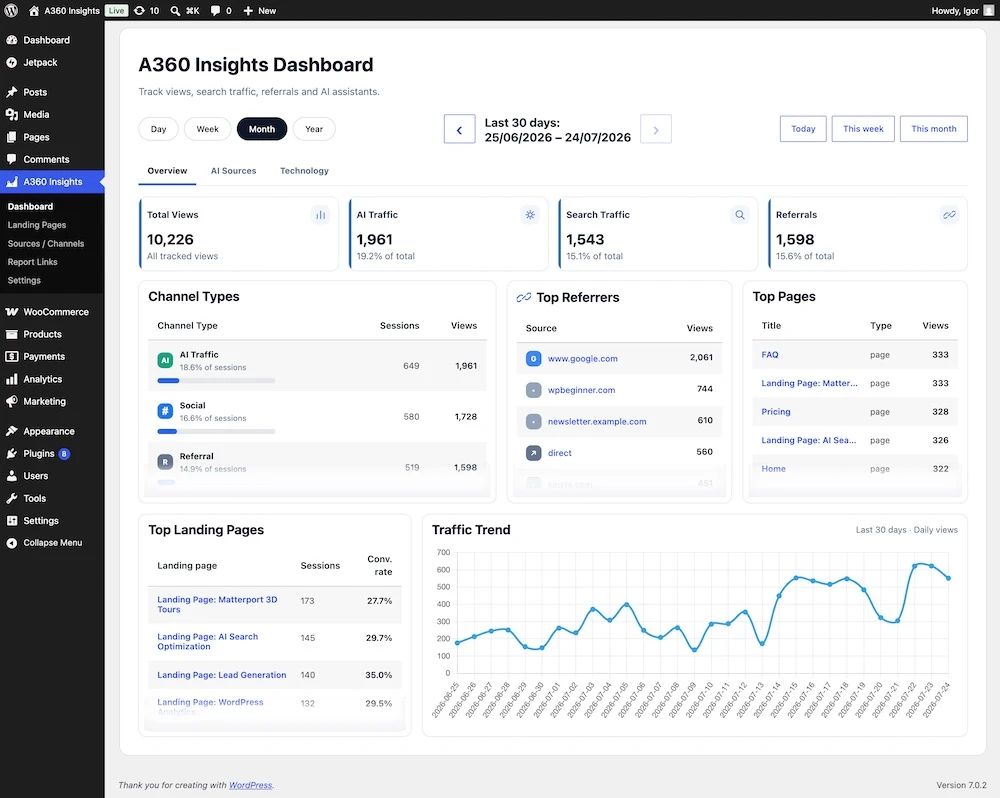
A360 Insights lets WordPress owners identify visits from AI assistants, compare them with search and referral traffic, and connect those visits with landing-page engagement. It works inside WordPress, does not require an external analytics account and does not store IP addresses or use cookies.
A360 INSIGHTS CAPABILITIES
Key features
A WordPress-native analytics toolkit for understanding discovery, engagement and conversion without building a profile of an identifiable visitor.
+
AI referral analytics
Detect visits from ChatGPT, Gemini, Copilot, Perplexity, Claude, OpenAI, Codex and additional AI discovery platforms.
+
Human and crawler separation
Keep confirmed AI referrals separate from GPTBot, ClaudeBot, PerplexityBot and other crawler or fetcher activity.
+
Sources and channels
Compare AI, organic search, referrals, direct traffic, social networks and UTM campaigns in one reporting layer.
+
Landing-page reporting
Measure sessions, engaged sessions, top sources and conversion rate for the pages that begin a visit.
+
Anonymous engagement events
Track scroll depth, outbound links, file downloads, phone clicks, email clicks and form activity.
+
Key events and funnels
Define conversion events and inspect steps from a page view through engagement, CTA clicks and form submission.
+
Reports and CSV export
Create private client-report links with optional expiration, manage them centrally and export data to CSV.
+
Privacy-first storage
Use analytics without cookies, IP storage, personal identifiers or full user-agent strings; data remains in WordPress.
Why AI traffic has become a separate discovery channel
Search engines are no longer the only systems helping people discover useful pages. ChatGPT, Gemini, Claude, Perplexity and Copilot can recommend sources and send readers directly to a website. These visits may be small compared with established organic search, but they often reveal which pages are clear, authoritative and useful enough to be included in an AI-generated answer.
Standard reports can hide this traffic inside referrals or direct visits. A360 Insights gives it a dedicated place in WordPress. That makes it easier to answer practical questions: Which assistant sent the visit? Which page received it? Did the session become engaged? Did the visitor click a phone number, email address, external link or form?
What A360 Insights tracks
The plugin separates confirmed human referrals from AI crawlers and fetchers. This distinction matters because a request from GPTBot or ClaudeBot is not the same as a person opening a cited source. Bot activity therefore does not inflate the main AI Traffic metric.
Additional reports cover Google and Bing traffic, UTM campaigns, referrers, anonymous sessions, engaged sessions, key events and conversion rate. Data can also be exported to CSV or shared through private client-report links.
How to configure A360 Insights
- Install and activate A360 Insights.
- Open A360 Insights → Settings.
- Select the post types and content that should be measured.
- Decide whether logged-in users and administrators should be ignored.
- Configure retention and optional public counters.
- Open the dashboard and verify that test visits appear in the expected channel.
Do not judge the plugin after a few minutes of testing. Referral data depends on the source and the way a visitor opens the link. Collect enough real sessions to compare patterns rather than isolated requests.
CONFIGURATION & REPORTS
A360 Insights: setup and reporting guide
This workflow covers A360 Insights 2.1.9. Configure tracking and privacy first, then collect real visits before judging individual sources or campaigns.
01
Set the tracking scope
Go to A360 Insights → Settings → Tracking. Select the public post types to measure, then choose:
- Track all selected post types — recommended for site-wide analytics.
- Track only selected content — useful for a campaign or a small landing-page set.
- Track all except selected content — omit confirmation pages or test content.
For include or exclude mode, find the relevant items under Selected content. Save, then open a tracked page in a private browser window to generate a clean test visit.
02
Configure Landing Pages
Open Settings → Landing Pages and add intentional business landing pages: campaign, lead-generation and Google Business Profile destinations. A360 Insights still detects every session-entry page automatically. Your selection highlights strategic pages and powers the Selected only filter.
In A360 Insights → Landing Pages, compare sessions, engaged sessions, top source and conversion rate. Use All detected for discovery and Selected only for actively managed pages.
03
Set the Public view counter
Go to Settings → Public Counter. It is disabled by default. Enable it only when visitors should see the number, then choose Unique sessions (recommended because refreshes in one session do not increase it) or All page views, and a Total site or Current content scope.
Change the label, colors, background and border as needed. For manual placement use 4,062visits or 134visits.
04
Configure Events & Privacy
In Settings → Events & Privacy, exclude administrators or all logged-in users so editorial work does not distort reports. Keep bot, crawler, cron, WP-CLI, prefetch and prerender filtering enabled unless a diagnostic test requires otherwise.
Under Key events, choose which anonymous actions count as conversions. Phone clicks, email clicks and form submissions are sensible defaults. The plugin also measures scroll depth, outbound links, downloads and form activity.
Enable referrer host/path and UTM storage when you need source and campaign detail. Full HTTP referrers are temporary diagnostics and may include query strings, so turn this off after testing. Choose data retention and whether uninstalling should delete analytics data.
05
Use Diagnostics after setup
After a test visit, open Settings → Diagnostics. Confirm that the tracking table says OK, event and session totals increase, and Last event is recent. It also shows engagement, engaged-session, AI and Google Business Profile counts. If data is missing, check Tracking scope first, then filtering and referrer settings.
06
Share Report Links and export CSV
Report Links provide a private read-only view for clients or colleagues without WordPress administrator access. Add an optional expiry date, then disable or delete the link centrally. Treat every report URL as confidential and revoke it after the project.
Use Export CSV in the relevant report for a spreadsheet, archive or deeper analysis. Apply the desired date range and filters before export.
Where to find statistics and how to read each report
Post statistics
Open Posts or Pages and click the A360 statistics value. The modal combines Overview, Sources, Technology, Campaigns, Recent visits, Engagement, Key events and Funnel for one item.
Sources
Use dashboard AI Sources and Sources / Channels. Compare sessions, engagement, conversions and landing pages across AI, organic search, referrals, direct, social and campaigns.
Technology
Anonymous device, browser and operating-system categories reveal mobile usage and compatibility priorities without storing a full user-agent string.
Campaigns
Appears when UTM parameters are detected and storage is enabled. Keep utm_source, utm_medium and utm_campaign names consistent.
Engagement
Review scroll 25/50/75/90%, outbound links, downloads, phone and email clicks, and forms. High views with weak engagement can signal a source–content mismatch.
Key events
Shows actions selected as conversions. Keep the list focused so conversion rate represents valuable outcomes, not every interaction.
Funnel
Follow page view → scroll → CTA → form submission. The largest drop points to content, offer or interface friction.
Recent visits
Use timestamps, detected sources and campaign attribution for validation. It is diagnostic, not a way to identify individual people.
How to turn the reports into content decisions
Start with landing pages, not total views. A page attracting a modest number of engaged visitors may be more useful than a high-traffic page with no meaningful action. Compare AI Traffic Share, engagement rate and conversions, then inspect the wording and structure of the strongest pages.
Pages discovered through AI often benefit from a direct introductory answer, descriptive headings, clear definitions, first-hand examples and an updated publication date. This is not about writing for a robot. It is about making expert information easy for both people and answer systems to understand.
A privacy-first analytics architecture
A360 Insights does not store IP addresses, user IDs, personal identifiers or full user-agent strings. It does not use cookies for its statistics. Analytics remain in the WordPress database controlled by the site owner. This reduces data collection, although every organization should still document its configuration and assess its own legal obligations.
See what AI sends to your WordPress site
Install A360 Insights, collect real traffic and identify the content that earns discovery beyond traditional search.
Frequently asked questions
Does A360 Insights require Google Analytics?
No. It operates inside WordPress without an external analytics account.
Does it track ChatGPT?
Yes. It detects referrals from ChatGPT and other supported AI platforms when the necessary referral information is available.
Does it count AI bots as visitors?
No. Confirmed AI referrals are separated from crawler and fetcher traffic.
Does it use cookies?
No. The plugin uses a privacy-focused approach without analytics cookies or IP storage.